Difference between revisions of "Document Browser"
Jump to navigation
Jump to search



(→Usage) |
(→Usage) |
||
| Line 64: | Line 64: | ||
---- | ---- | ||
[[Main Page | <span style="font-family:webdings">4</span>Main Page]] | [[Main Page | <span style="font-family:webdings">4</span>Main Page]] | ||
| + | [[Guide to Ellserve | <span style="font-family:webdings">4</span>Guide to Ellserve]] | ||
[[Data Browser| <span style="font-family:webdings">4</span>Data Browser]] | [[Data Browser| <span style="font-family:webdings">4</span>Data Browser]] | ||
[[Data Page| <span style="font-family:webdings">4</span>Data Page]] | [[Data Page| <span style="font-family:webdings">4</span>Data Page]] | ||
[[Display Controls| <span style="font-family:webdings">4</span>Display Controls]] | [[Display Controls| <span style="font-family:webdings">4</span>Display Controls]] | ||
Revision as of 10:47, 19 June 2014


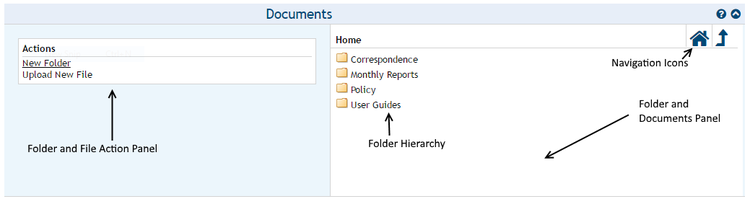
The Document Browser is used to manage documents and other electronic data stored in Ellserve.
Configuration
The document browser has no configurable features.
Usage
>> To navigate folders:
- Click on the up arrow in the top right corner to go back to previous folder
- To return to the "Home" screen click on the house icon in the top right corner.
- Clicking on a folder name in the folder hierarchy will open that folder.
>> To create a folder:
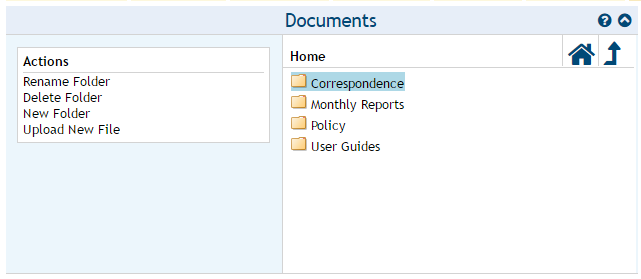
- Click on the folder name in the folders panel (this will highlight the folder) and click New Folder in the action panel.
- Enter the new folder name in the pop-up box
- Click the Create Directory button and close the pop-up box
>> To delete a folder:
- Click on the folder name in the folders panel (this will highlight the folder)
- Click Delete Folder in the action panel.
>> To open a folder: in the Document Browser simply double click on it.
>> To Upload a new document:
- Navigate to the storage folder and click Upload New File in the action panel. this wil open the file up load pop-up box.
- Use the Choose File button pop-up box and use the standard Windows file navigator to locate the document.
- Click the Upload File button and close the pop-up box
>> To open a document:
- Double click on the document icon in the documents panel; or
- Click on Download File in the action panel; or
- Copy the document URL from the External URL panel and paste in to a browser.
>> To delete a document:
- Click on the document name in the document panel (this will highlight the document)
- Click Delete File in the action panel.
4Main Page 4Guide to Ellserve 4Data Browser 4Data Page 4Display Controls