ifference between revisions of "Generic Features Alternative"
Jump to navigation
Jump to search



Paul Chapman (talk | contribs) |
Paul Chapman (talk | contribs) |
||
| Line 10: | Line 10: | ||
''Note: The cog icon usually appears either in the top left corner of a control box or to the left of the text on a page tab.'' | ''Note: The cog icon usually appears either in the top left corner of a control box or to the left of the text on a page tab.'' | ||
| + | |||
| + | |||
| + | ====Default Settings Panel==== | ||
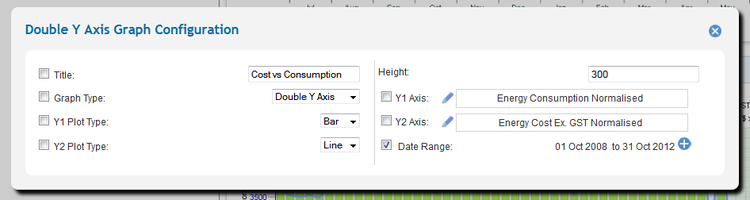
| + | [[File:DefaultPanel.png|right|750px|Frame|Default Setting Panel - Chart Control]] | ||
| + | |||
====In-session Settings Icon==== | ====In-session Settings Icon==== | ||
| Line 21: | Line 26: | ||
''Note: The expand/collapse icon usually appears either in the top right corner of a control box.'' | ''Note: The expand/collapse icon usually appears either in the top right corner of a control box.'' | ||
| − | |||
| − | |||
====Control Title==== | ====Control Title==== | ||
Revision as of 15:15, 3 October 2012
The Configuration (Cog) Icon

Clicking on a cog icon opens a control’s default settings panel. This icon is only visible in configurable mode.
Note: The cog icon usually appears either in the top left corner of a control box or to the left of the text on a page tab.
Default Settings Panel

In-session Settings Icon

The in-session parameters panel is managed using the expand/collapse icons to show/hide a control’s session settings.
Note: The expand/collapse icon usually appears either in the top right corner of a control box.
Control Title

The in-session parameters panel is managed using the expand/collapse icons to show/hide a control’s session settings.
Note: The expand/collapse icon usually appears either in the top right corner of a control box.